> ## Documentation Index
> Fetch the complete documentation index at: https://docs.acasia.com/llms.txt
> Use this file to discover all available pages before exploring further.
# API Keys
> View, create, rotate, and revoke credentials for programmatic access to Acasia services.
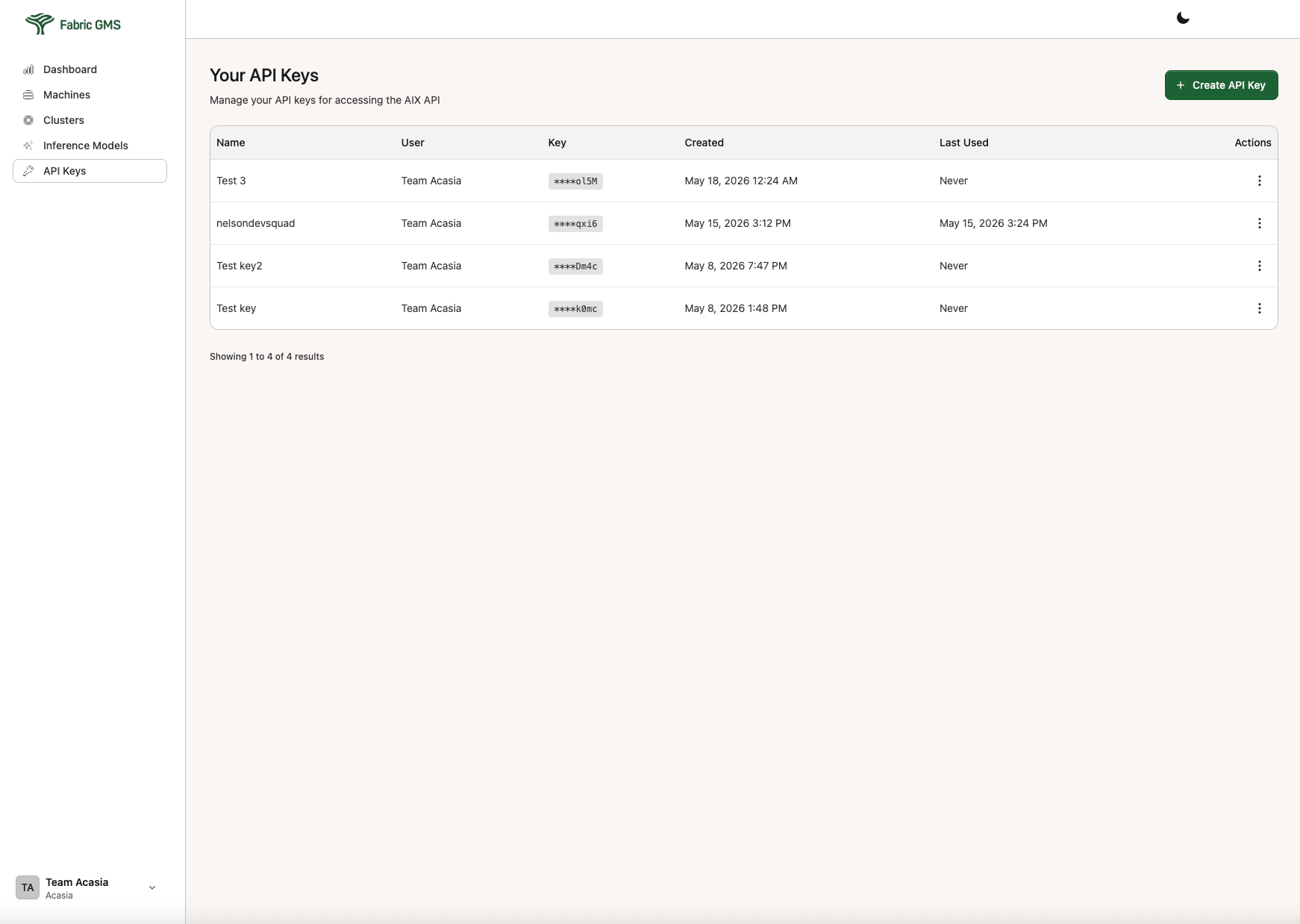
API keys are scoped to the active organization and authenticate requests to:
* Inference endpoints
* Automated workflows and pipelines
* Acasia service integrations
## API key table fields
| Field | Description |
| --------- | -------------------------------------------------------------- |
| Name | Label you assigned to the key |
| Key | Masked key value — the full key is only shown once at creation |
| Created | Date the key was created |
| Last Used | Timestamp of the most recent authenticated request |
| Actions | Revoke or copy the key |
## Creating an API key
Opens the key creation panel.
Use a name that identifies the application, environment, or owner — for example: `production-app`, `dev-pipeline`, or `team-acasia`.
The full key value is shown **only once** at creation. Copy it and store it in your secrets manager before closing the panel. It cannot be retrieved again.
API keys are shown in full only at the time of creation. If you lose a key, you must revoke it and create a new one. Never commit API keys to source code or share them in plaintext.
## Using an API key
Include the API key in the `Authorization` header of requests to Acasia endpoints:
```bash theme={null}
curl https:///v1/chat/completions \
-H "Authorization: Bearer " \
-H "Content-Type: application/json" \
-d '{"model": "", "messages": [{"role": "user", "content": "Hello"}]}'
```
```typescript theme={null}
const response = await fetch(process.env.ACASIA_ENDPOINT_URL, {
method: "POST",
headers: {
Authorization: `Bearer ${process.env.ACASIA_API_KEY}`,
"Content-Type": "application/json",
},
body: JSON.stringify({
model: process.env.ACASIA_MODEL_NAME,
messages: [{ role: "user", content: prompt }],
}),
});
```
## Last Used timestamp
Use this column to confirm a key is actively used, identify stale keys, and audit usage across your organization.
## Rotating and revoking keys
**Rotate** a key by creating a new one, updating your application to use it, then revoking the old one.
**Revoke** a key from the Actions menu. Revocation is immediate.
| Action | When to use |
| ------ | --------------------------------------------------------------------------- |
| Rotate | Periodic security rotation, suspected exposure, team member offboarding |
| Revoke | Key is no longer needed, confirmed exposure, decommissioning an application |
Revoking a key immediately invalidates it. Confirm no active applications or workflows depend on the key before revoking.
## Best practices
* Name keys by application, environment, or owner
* Store keys in a secrets manager
* Rotate keys periodically and whenever a team member with key access leaves
* Revoke keys immediately if exposure is suspected
* Never commit keys to source code or include them in logs
* Review the **Last Used** column regularly to identify and remove stale keys